Browser SourceTwitchYouTubeWindowsOBS Dock

Now Playing

No reviews yet

Show the current song, album artwork, artist and progress in OBS. Choose from eleven themes and customize colors, typography and the animated waveform. Requires SMTC Bridge on Windows.

Quick Access

Copy what you need to get started. Follow the setup guide below for detailed instructions.

Add under Docks → Custom Browser Docks in OBS.

Download EXE

Windows application for this extension. Follow the setup guide.

Download ↓

Setup Guide

Requirements

  • OBS Studio
  • Windows with SMTC Bridge running
  • Media player reporting a Windows media session
  1. Download SMTC Bridge

    Download the SMTC Bridge using the download button, extract the archive, and launch SMTC.exe.
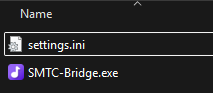
  2. SMTC Bridge on Systemtray

    Launch the SMTC Bridge and verify that it minimizes to the system tray. Once running, it should start automatically with Windows.
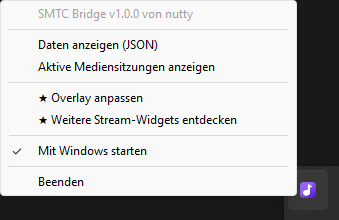
  3. Installation geschafft!

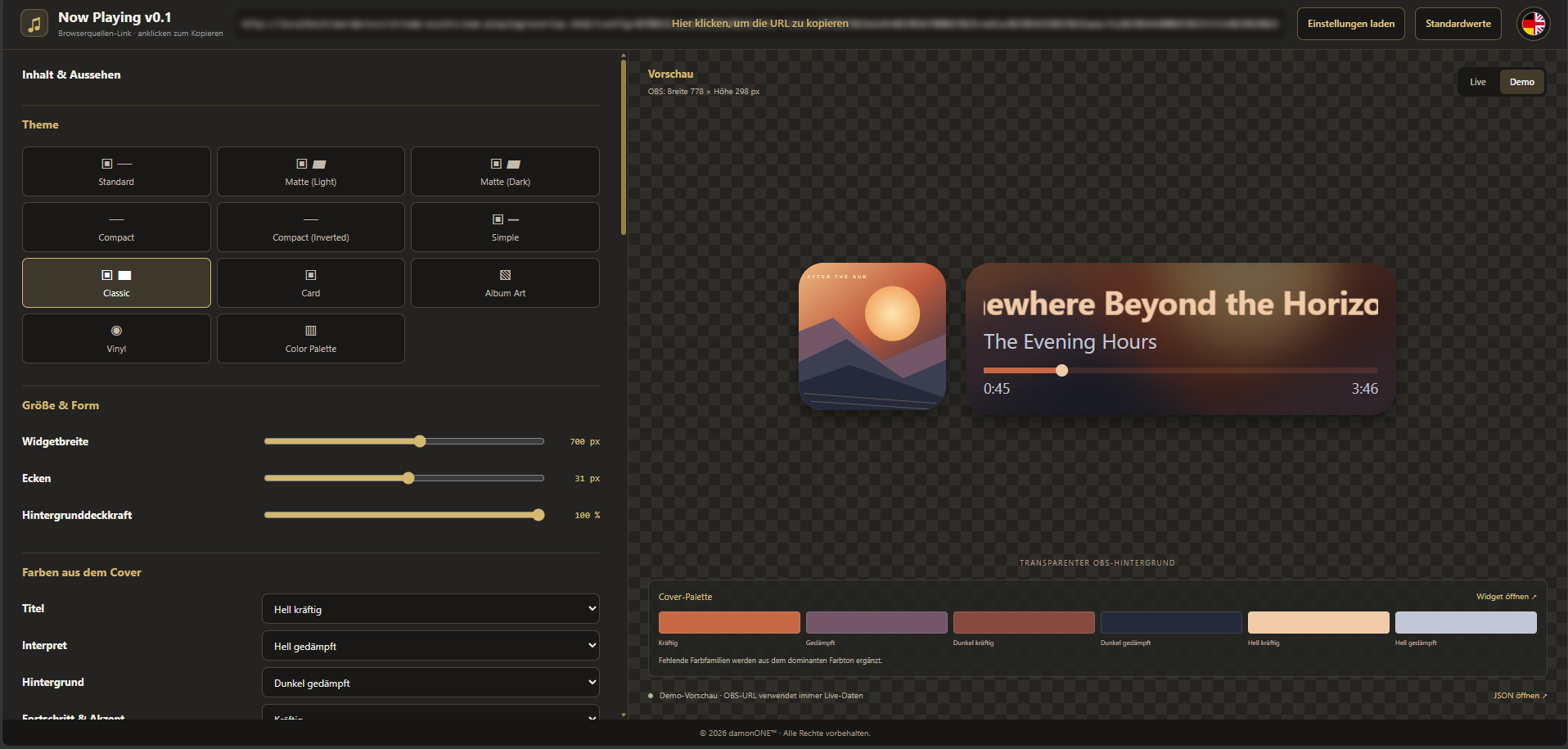
    Choose a theme, fonts and colors. Copy the generated extension URL.

The Settings Panel

Theme and appearance

Choose your theme and adjust colors, fonts, artwork and the progress display. The preview shows the result.
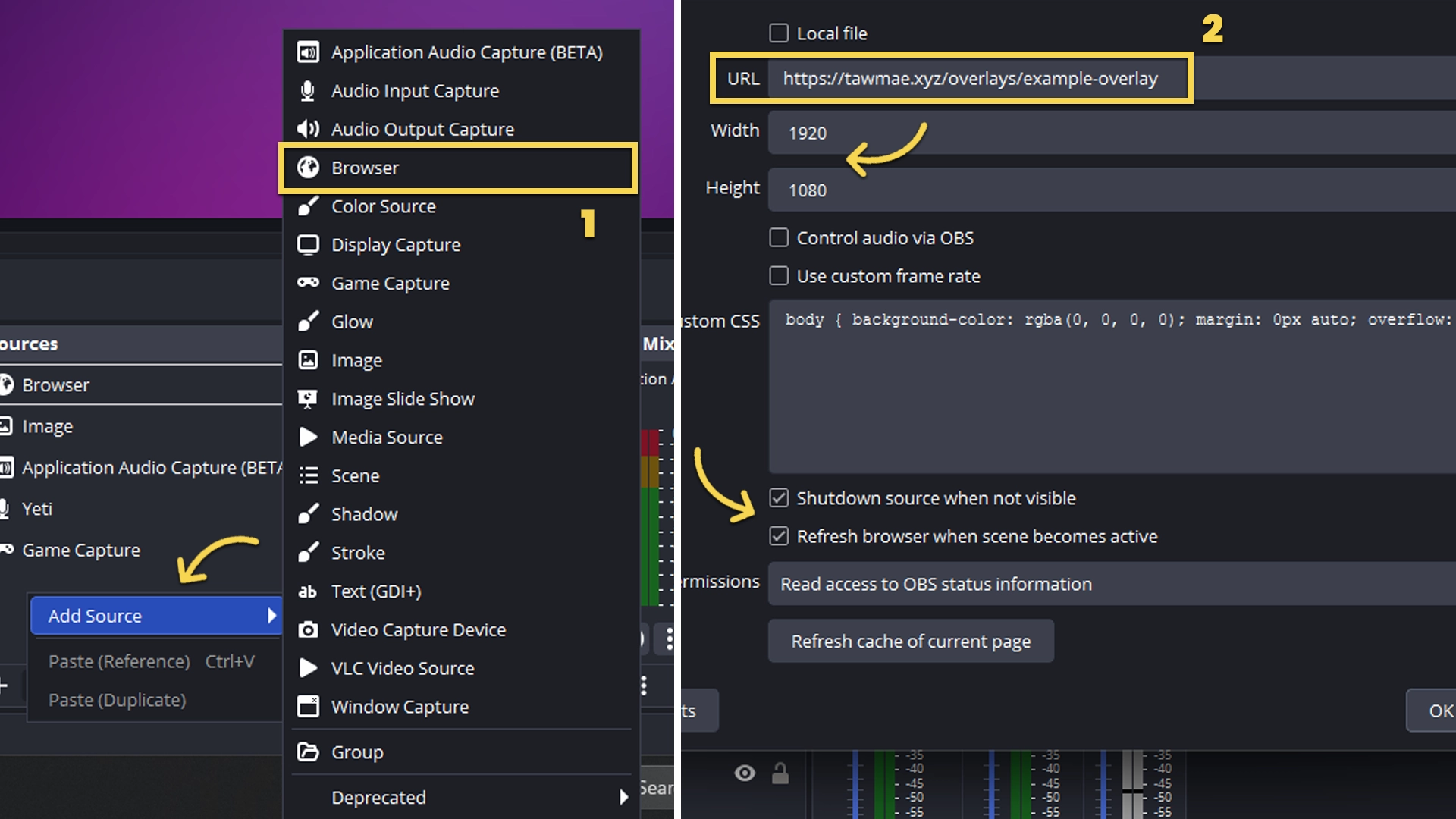
Connection and OBS

SMTC Bridge must be reachable for live data. Copy the generated extension URL and use the displayed dimensions in OBS.
Open settings page ↗

FAQ

Why is no song displayed?

Start SMTC Bridge and play music in a player that provides Windows media information. Check the connection in the settings.

Can I try the design without music?

Yes. Use the demo preview on the settings page.

Does the waveform measure real audio levels?

No. The bars are animated to match playback status.

How do I apply changes in OBS?

Copy the newly generated extension URL into your browser source and refresh it.

Changelog

  1. 0.1

    Currently available download package.

User Reviews

No reviews yet

Write a review

New reviews appear after approval.

Your rating

Related resources